
Subject: Webmail Setup 2-Factor Authentication
How to set up Webmail 2-Factor Authentication
Please login to your webmail site and perform the below step to set up Webmail 2-Factor Authentication.
- Navigate to your website URL. https://webmail.yourdomain.com
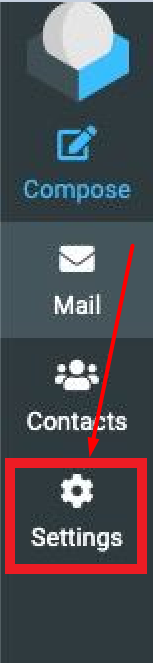
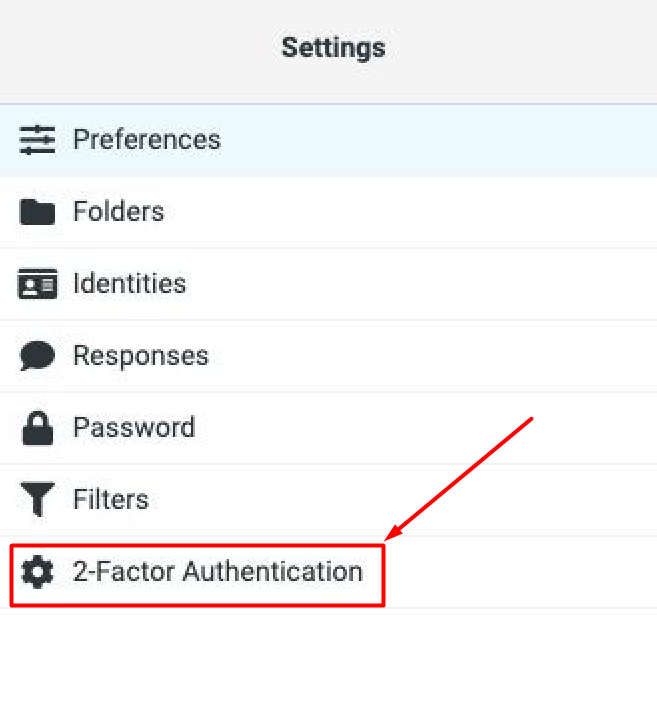
- Go to Setting > 2-Factor authentication
3. Select Activate check box then click "Fill all Field"
Note: Please Save your recovery code in your secure location for the MFA recovery method.

4. Click show QR code to scan the 2-factor authentication application.
5. Once QR code has been set up on your authentication, Enter the 6 digit code that the application generates then click check code to verify to code
6.Click Save to complete 2-Factor Authentication set up

How to set up Webmail 2-Factor Authentication Recovery code
If you would like to set up your own MFA recovery codes, please refer to the below step. Each code will work only 1 time after a successful login.
- Navigate to your website URL. https://webmail.yourdomain.com
- Go to Setting > 2-Factor authentication
3. Enter your recovery code in each text field with the below requirement then click Save.
a. length 6-10 Character
b. The code must contain only A-Z, a-z, and 0-9 (no special character)