
The below steps will guide you to set up your team file sync with your local computer.
- Open Microsoft Team
- Go to File Tab on your team site > Click Sync

- The OneDrive app will open, make sure it displays your organization account then click sign in
- Click Next to set up the Sync folder.
- Note: Click “Change Location” if you would like to change the sync location
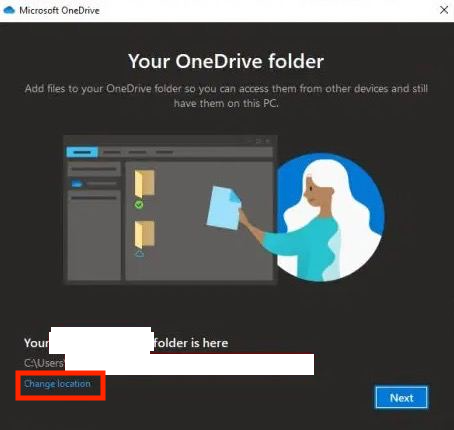
- Note: Click “Change Location” if you would like to change the sync location